Connect your calendar
Share your personal calendar's free/busy time with your Zella account, so participants can't book you when you're busy. About 5 minutes.
Participants book sessions on your Zella calendar. So they can't book you when you're busy, your Zella calendar needs to see when your own calendar is busy. It only ever sees busy or free, never what your events are. You need a computer and about 5 minutes.
Part 1: share your calendar (in your personal Google account)
- Go to calendar.google.com, signed in with your personal Google account.
- Under My calendars, hover over your calendar, click the three dots, then Settings and sharing.
- Under Share with specific people or groups, click Add people and groups and type your Zella address.
- Change Permissions to See only free/busy (hide details). Google suggests "See all event details", so change it.
- Click Send. Use more than one calendar? Repeat for each one.
Part 2: accept it (in your Zella account)
- Go to mail.google.com signed in as your Zella address. To switch, click your profile picture and pick your Zella account.
- Open the email from Google saying your calendar has been shared with you, click Join shared calendar, then Add.
Part 3: check it in Zella Life
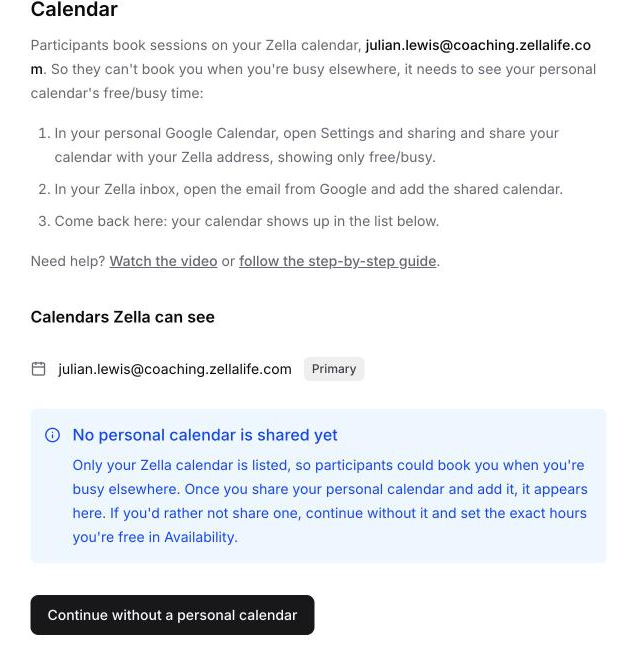
- Go back to the Calendar step in Zella Life. Your calendar now appears under Calendars Zella can see.
- Click Confirm calendar.
Note
If only your Zella address is listed, Zella can't see your calendar yet: go back to Part 2. The button then reads Continue without a personal calendar; only use it if you don't want to share one.
Part 4: see your Zella sessions in your own calendar (recommended)
This is the other direction: your own calendar shows a busy block whenever a participant books you, so you don't double-book yourself.
- Go to calendar.google.com signed in as your Zella address.
- Open your Zella calendar's Settings and sharing, click Add people and groups and type your personal address. See only free/busy is the only option, because session details stay in Zella.
- Click Send. In your personal Gmail, open the share email, click Join shared calendar, then Add.
Not on Google Calendar?
Continue the Calendar step without a personal calendar, then set the exact hours you're free for Zella in Availability, and add time off for days you're away. Outlook or Apple Calendar users can also connect: email hello@zellalife.com and we'll help.